
Introduction
Benefits of using ResNet
How to use ResNet
How to share ResNet
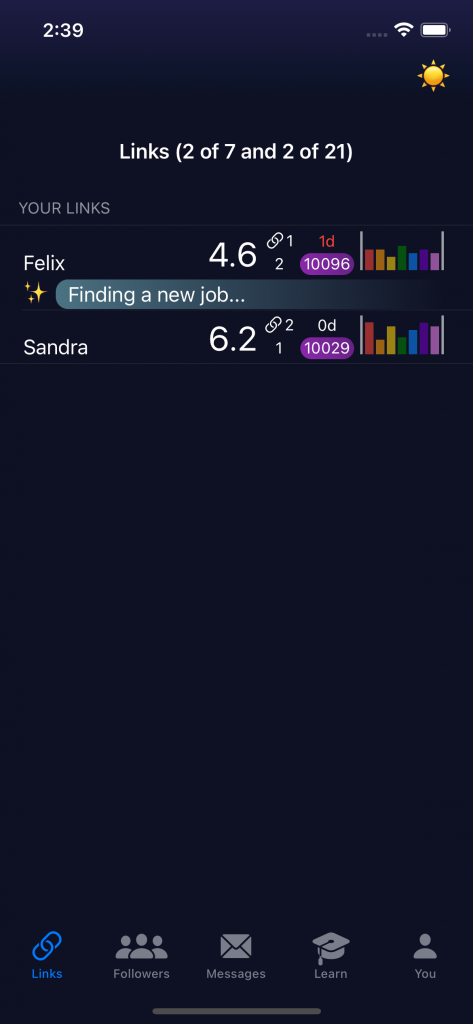
The Links tab (for your friends you care about most)
The sun ☀️ shines when you have more Care Points than the average.
You currently have 2 out of 7 possible links (friends), and overall you have ever used 2 out of your 21 possible lifetime links.
For each link from left to right: name of your link, total score (average of the (shared) category scores), number of links, number of followers, days since last login, number of Care Points, a visual representation of all 7 category scores. If your link has defined a goal it is displayed next to the stars ✨.
Tap on a link to see your link’s detail view.
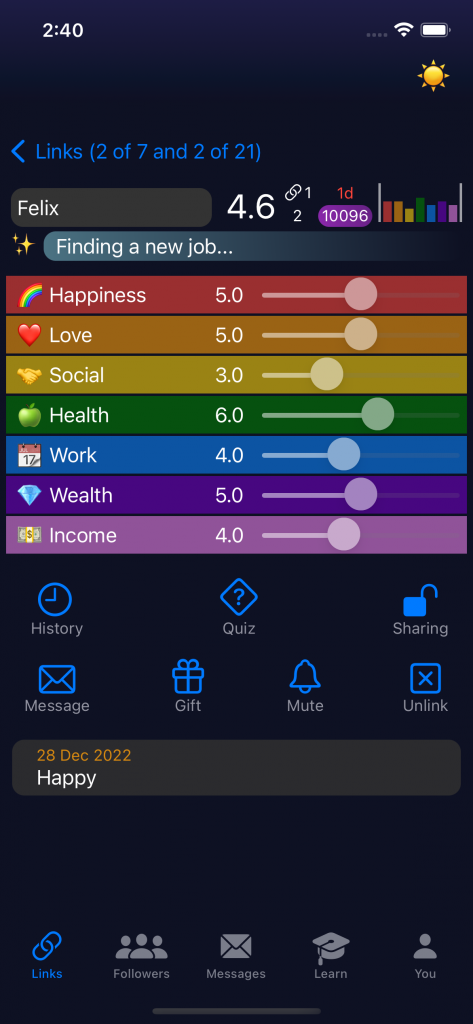
The link’s detail view
You find all category scores that are shared with you, several buttons and the latest tag (diary entry) of your link in this detail view.
Tap on History to explore past scores and tags. Tap on Quiz to play a quiz game with your link. Tap on Sharing to enter a shared password with your link to write secure messages that even a quantum computer cannot decrypt. Tap on Message to write a message. Tap on Gift to send a gift with Care Points to your link as a sign of appreciation of help you received from your link. Read the whitepaper to understand the Care Points rules. Tap on Mute to stop receiving alerts due to category score changes from your link. And tap on Unlink to turn your link back into a follower.

The Followers tab
This tab shows your followers, from whom you can have more than links.
Tap the + button on the top right to invite your friends by sending them a personalized invite token (a 5-digit code like 4ea27) by email, sms, or your favorite messenger.
Note that you need to wait 0 days until you can invite your first friends. After this first phase you again need to wait to invite more. We recommend to keep the number of friends you follow small. Otherwise, they cannot really rely on you. Read further down about the invite rules.
Tap the checkmark button on the top left if you received an invite token from a friend. When you enter the invite token, you and your friend are following each other.
The Messages tab
Find all messages of your friends, broadcast, reminder, votes, alerts messages on this tab in your inbox.
Tap on the Inbox button on the top left to see the messages that you have sent to your friends.
You can delete messages by swiping from right to left, and mark messages as unread/read by swiping from left to right.
Tap the bell button on the top right to open your alerts and reminders settings, see below.


Alerts and reminders
Use the alert settings to define when you would like to receive an alert message in case one of your friends updates the category scores. This provides you an opportunity to support, to reach out to your friend.
Find several suggested (social) reminders below. This is a key feature of ResNet, since these reminders can help you to reach your goals. Define the frequency of a reminder, share the reminder with some of your friends, add randomness to spice it up 🌶️ and tap the checkmark to promise yourself to stay on track…
You will receive reminder messages at the defined time intervals and each time you can mark whether you are on track (earning some Care Points) or you failed this time.
The Learn tab
The Learn tab is a collection of pages like for example the Advice page, where you find several advice resources for each of the 7 life categories. You can rate them as heaven ☀️, neutral ☁️, or hell ⛈️, and learn from potentially different views of your friends.
On the Help page, you can ask for technical support, provide feedback about the app, and take part in votes about future app developments. The app will continuously be refined over the coming years.
The Insights page will be the science and statistics corner of the app once the app has sufficient users, where we will provide general and personalized insights.


The You tab
Set and update your 7 category scores on the You tab, find guidance for each category further below.
The checkmarks define which categories you share with your links and followers. See how they see you above. The individual sharing settings that you might have defined with a friend have higher priority.
Tap on history to see your past scores and tags (diary entries). Tap on the Save button to save your changes, to update your goal, to define a tag, and optionally attach a picture. The pictures are always private and you can mark each tag as private by tapping the lock symbol.
We recommend updating your scores every 2 weeks. This kind of journaling has proven positive health impacts.
General questions and more…
Tapping on the More button on the top left of the You tab opens the general questions. These questions form the basis for the insights generated by ResNet and shared with you on the Insights page of the Learn tab. Please answer them conscientiously.
Write down the recovery code on a piece of paper and keep it safe, or provide an email address as recovery method.
Finally, read the Whitepaper to understand how you could exchange your Care Points for RNC in one of the 4 future payout phases.

The 7 life categories (subjective view)
🌈 Happiness
❤️ Love
🤝 Social
🍏 Health
📆 Work
💎 Wealth
💵 Income
General statistical questions (objective view)
At the bottom of the general questions you also find your recovery token. Do write it down on a piece of paper and store it safely. In case you lose your device, you will need to restore your account by using your recovery token. Alternatively, you can provide an email address as recovery method.
Links
By tapping on one of your links you will see all the details that are shared with you. And you can provide your link with a name. This name is only stored on your device for data privacy reasons. ResNet wants you to feel safe and protected with and only with your small group of friends.
In case one of your links did reach out to you, offering help, or maybe also just doing you a small favor, you can and should send a gift as a sign of appreciation. ResNet would like to incentivize and measure these acts of help. There are plenty of rules around sending gifts with Care Points, read the whitepaper for further details.
Followers
Messages
Invite rules
1. After your registration on ResNet you will have to wait some time (find all current parameters at the bottom of this page) before being allowed to invite your first friends.
2. Then, after every new invite in wave two, you will again have to wait a certain period of time.
3. Finally, after a given number of invites, the time you will have to wait until you are allowed to invite again will increase.
Expiration and waiting times
Rules around Care Points
Levels
Level 2: Having at least 2 links.
Level 3: Having helped at least 3 times, i.e., having received at least 3 gifts.
Level 4: Having received help at least 3 times, i.e., having sent at least 3 gifts.
Level 5: Having provided a Solana address where RNC should be transferred to.
Level 6: Holding at least 1 RNC on the provided Solana address or RNC of a value of at least 1 USD adjusted by GDP per capita of the user’s country.
Level 7a: Not being in the top 1% of Care Points holders.
Level 7b: Not being in the top 1% but being in the top 30% of Care Points holders.
Level 7c: Not being in the top 1% but being in the top 10% of Care Points holders.
Current parameters
Number of invites in first wave: 7
Waiting days after each invite in second wave: 3
Number of invites to reach third wave: 49
Waiting days after each invite in third wave: 7
Maximum number of links at the same time: 7
Maximum cumulative number of links over lifetime: 21
Days until invites expire: 365
Days until requests expire: 21
Days until a unilateral unlink request becomes effective: 49
Waiting minutes after categories update: 0
Waiting hours general questions update: 0
Waiting hours sending Care Points per contact: 24
Waiting minutes message per contact: 3
Waiting hours sending feedback: 24
Waiting minutes support questions: 1
Days until account deletion without login: 9999
Days until account deletion warning: 9900
Bonus rate in percent: 50
Daily bonus Care Points for logging in: 1
Bonus for correct quiz answer: 1
Bonus (once in 24 hours) for on track reminder: randomly 0 to 7
Bonus for a new friend that registered: 77
Maximum lifetime net spend ratio (with respect to average balance) to one link: 0.5
Maximum spend ratio (with respect to current balance) in one transaction: 0.25
Maximum spend ratio (with respect to average balance) in one transaction: 0.5
Maximum spend ratio (with respect to current balance) past 365 days: 0.25
Maximum spend ratio (with respect to average balance) past 365 days: 0.5
Basic income ratio between your current balance and average Care Points balance, when basic income fully kicks in and increases your Care Points balance proportional to inflation: 0.3
Suggested annual spend ratio (with respect to current balance): 0.2
Download the whitepaper for more details on these parameters.
FAQs
What is ResNet?
Who should I invite to ResNet?
1. In case you would primarily like to help others, invite those that you care for most or those that might be most in need of your help.
2. In case you primarily would like that others help you when you go through difficult times, invite those that you think might be best suited and would be ready to help you. You can also try to think of specific persons for each of the 7 life categories.
3. In case you want to think bigger and would like to help to spread ResNet to make our society more resilient, invite those that you think will be most influential. Do you know people that will probably be very much inspired by the ideas of ResNet and will make it their own?